Creating a new branch in Git is one of those everyday commands you run without thinking, until you realize you have been typing two commands when one would do. Every time you create a branch you also need to switch to it before you start committing, and there is a shortcut that does both at once. In this pro tip I will show you the traditional way to create a branch, then my favorite shortcut to create one and switch to it in a single command.
Traditional ways to create a branch
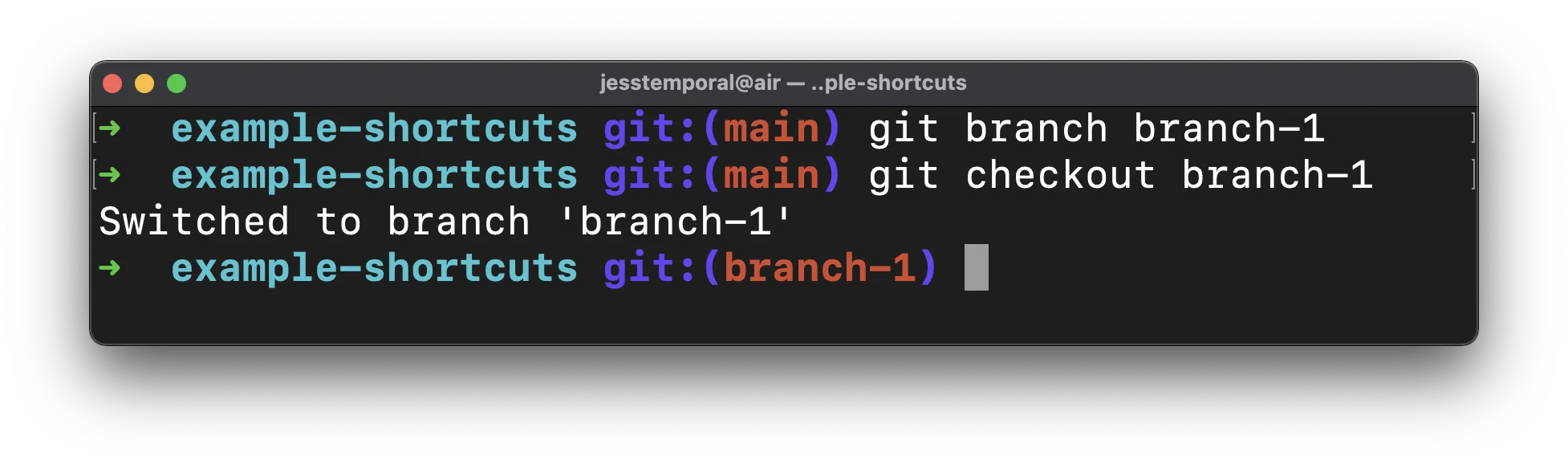
In Git, it is possible to create a branch and switch to it using the following command sequence:
|
|
|
As you can see in the image below:
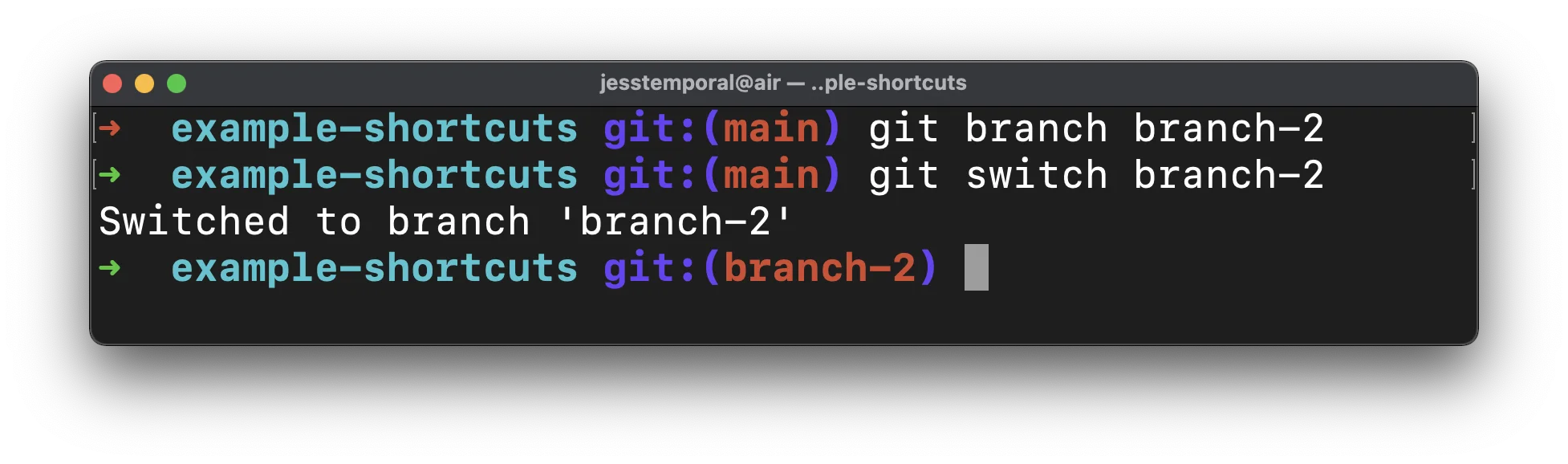
Or even with the following sequence:
|
|
|
Also visible in the image bellow:
Shortcuts to create branches and switch branches at the same time
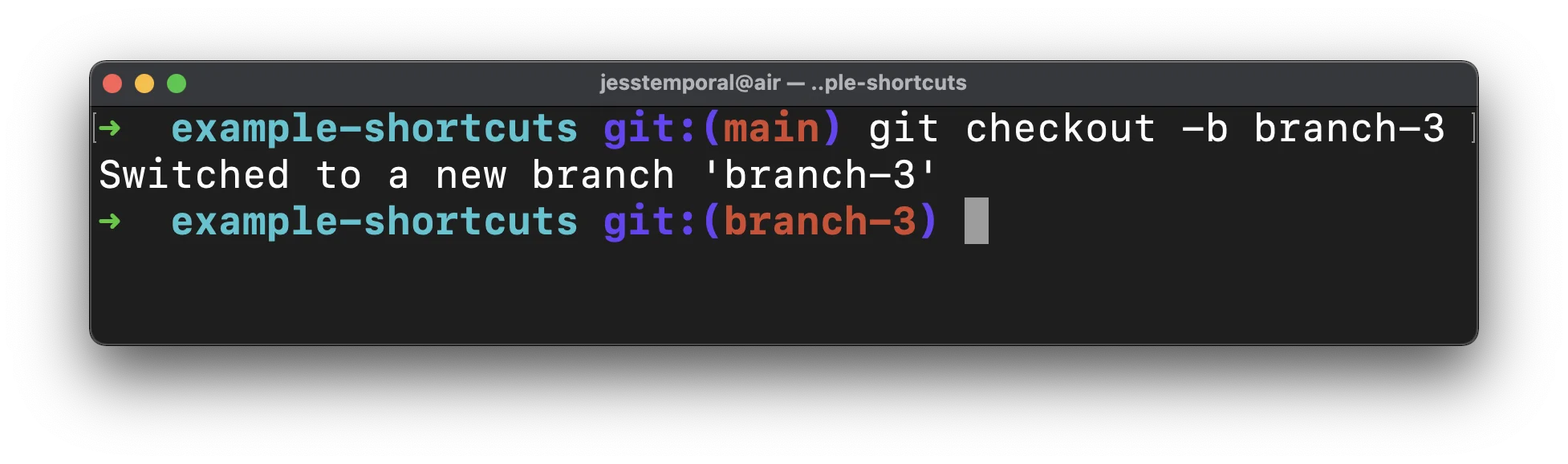
There’s nothing wrong with these two sequences of commands shown earlier, but there are two shortcuts to get the same result using just one command. The first using git checkout followed by the -b flag:
|
|
You can see the similar result to the one shown in the first example of this blog post:
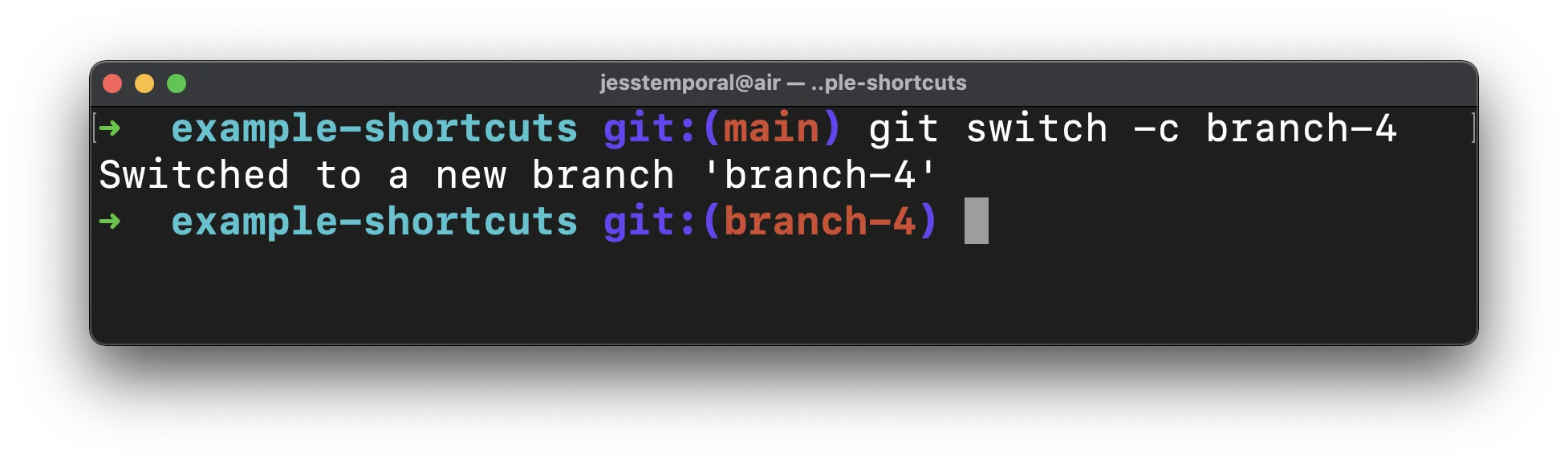
And if you prefer using the command git switch we have the following shortcut using the -c flag:
|
|
Also with a similar result to what we saw previously:
Recapping
To create a new branch and switch to it in one command, you have two options: git checkout -b branch-name or git switch -c branch-name. Both create the branch and move you onto it right away, so you can start committing. The longer way, git branch followed by git checkout or git switch, still works, but the shortcut saves you a step every time.
If you are tidying up your Git workflow, you might also like how to update a branch with git rebase and undoing the last commit and reusing the message.
GitFichas
Below you’ll find two GitFichas to help you remember these shortcuts:
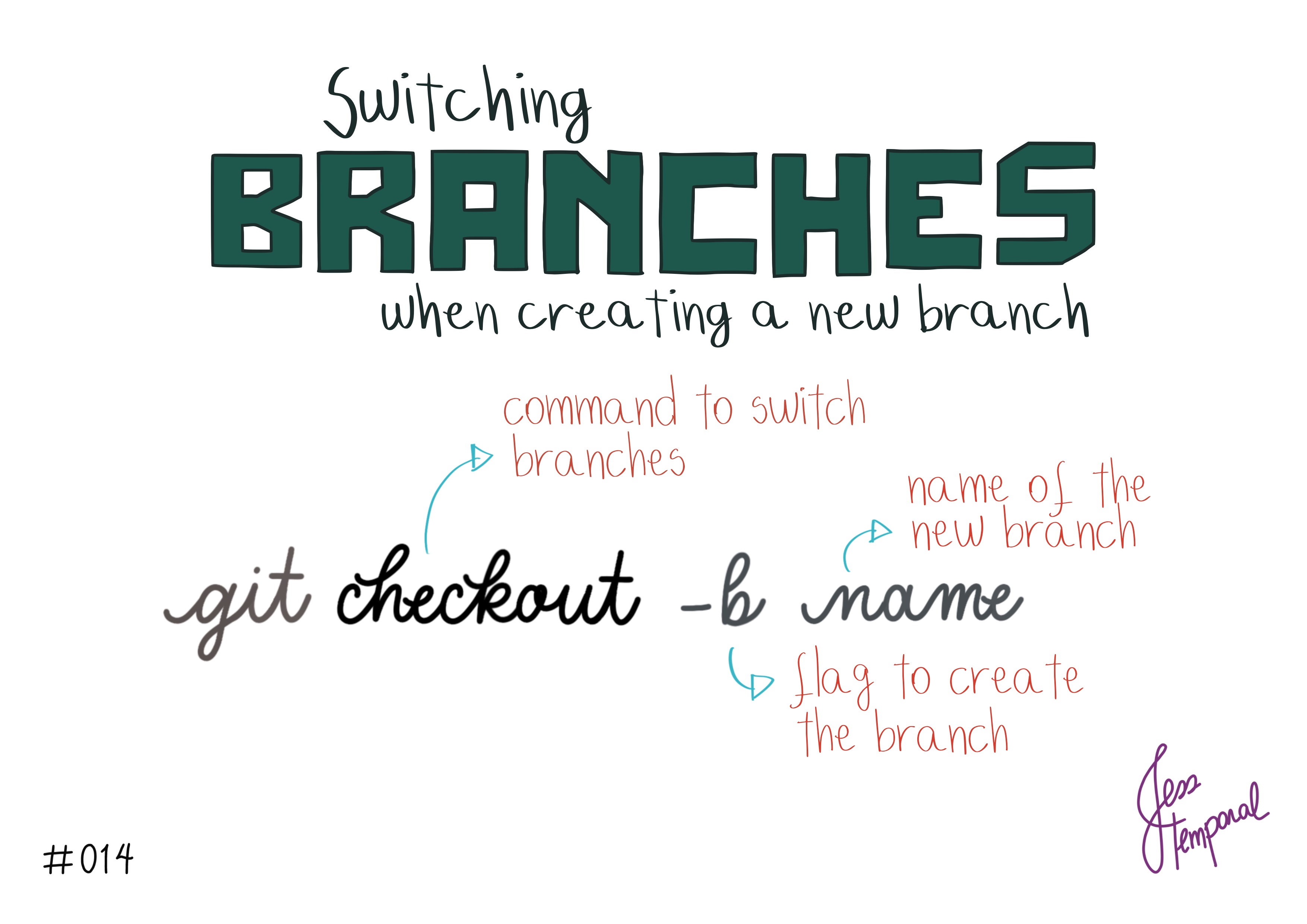

Now you know two shortcuts to create a branch and change to it with only one command.