Migrating my website to a new design meant working on a separate repo for a while. Once things looked solid enough to ship, I figured I’d just point Netlify at the new repo and use previews instead of setting up a whole new project. Easy, right? 😅 Except the repo wasn’t showing up in Netlify’s list.
The problem
When I went to link the new repo to my existing project, the repo wasn’t in the list.
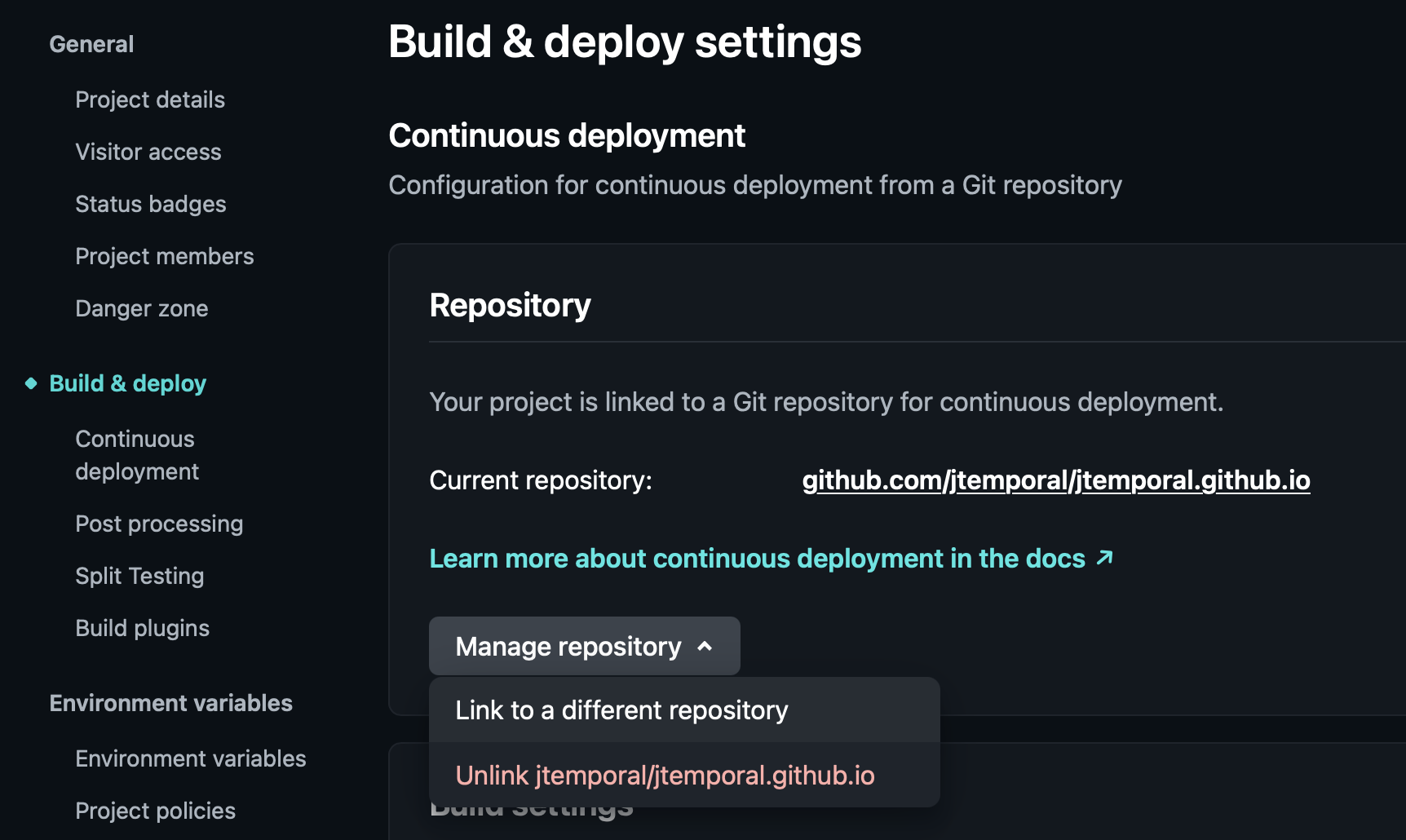
Turns out I set up all my projects years ago and completely forgot I’d given Netlify access to a filtered list of repos.
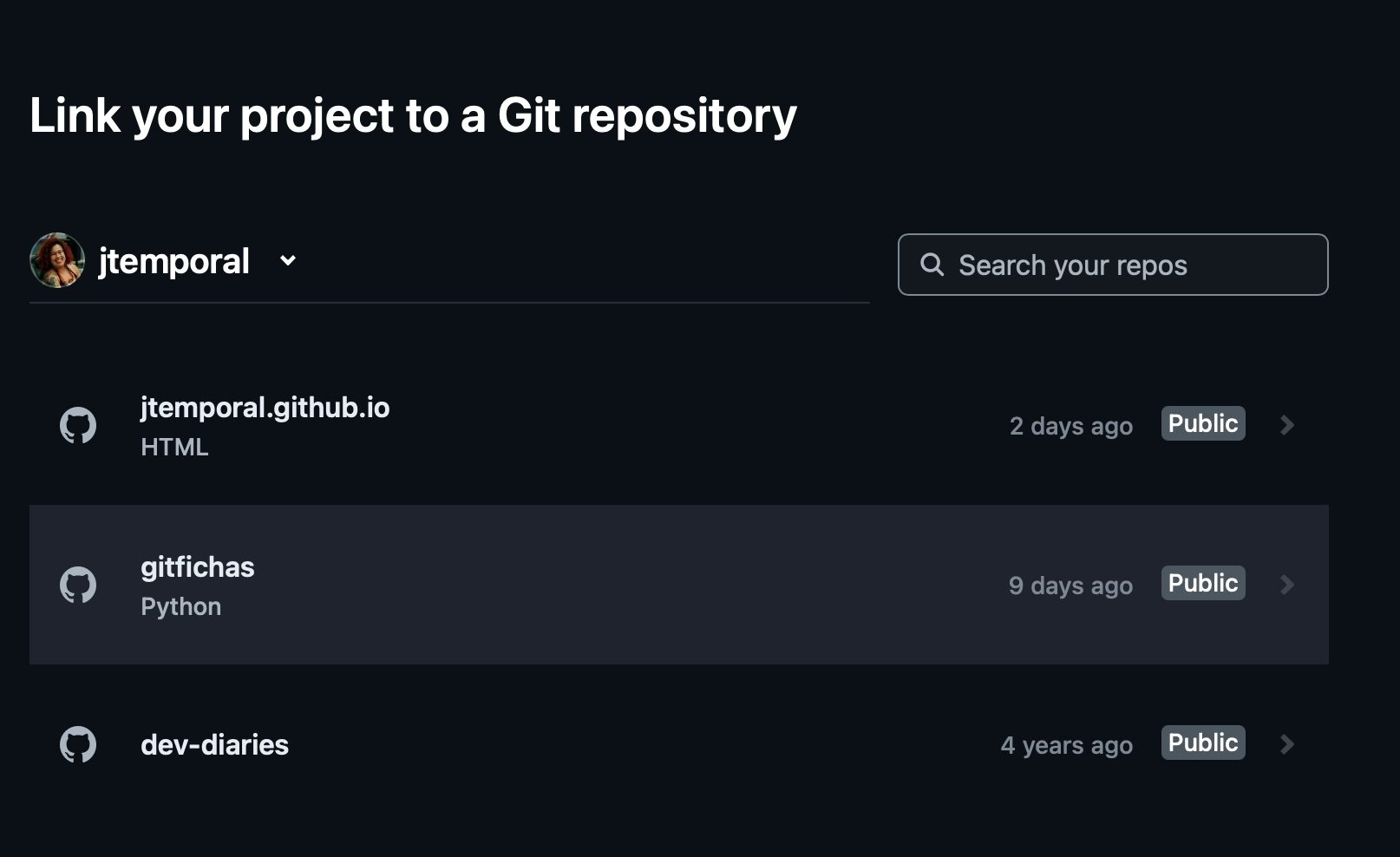
So off I went to figure this out again.
Netlify app in GitHub
The configuration that tells Netlify which GitHub repos it can see actually lives in GitHub, not in Netlify. I had completely forgotten that. After five minutes of clicking around the Netlify dashboard in vain, I gave up and asked Google:
|
To which it kindly replied that: “To grant Netlify access to all repositories, you need to update the repository permissions in your Git provider settings”. And then it clicked.
I need to update things in GitHub
The list of repos Netlify has access is set in GitHub
To update which repos Netlify can access, you need to find the Netlify app you authorized when you first connected your accounts. Remember this screen?
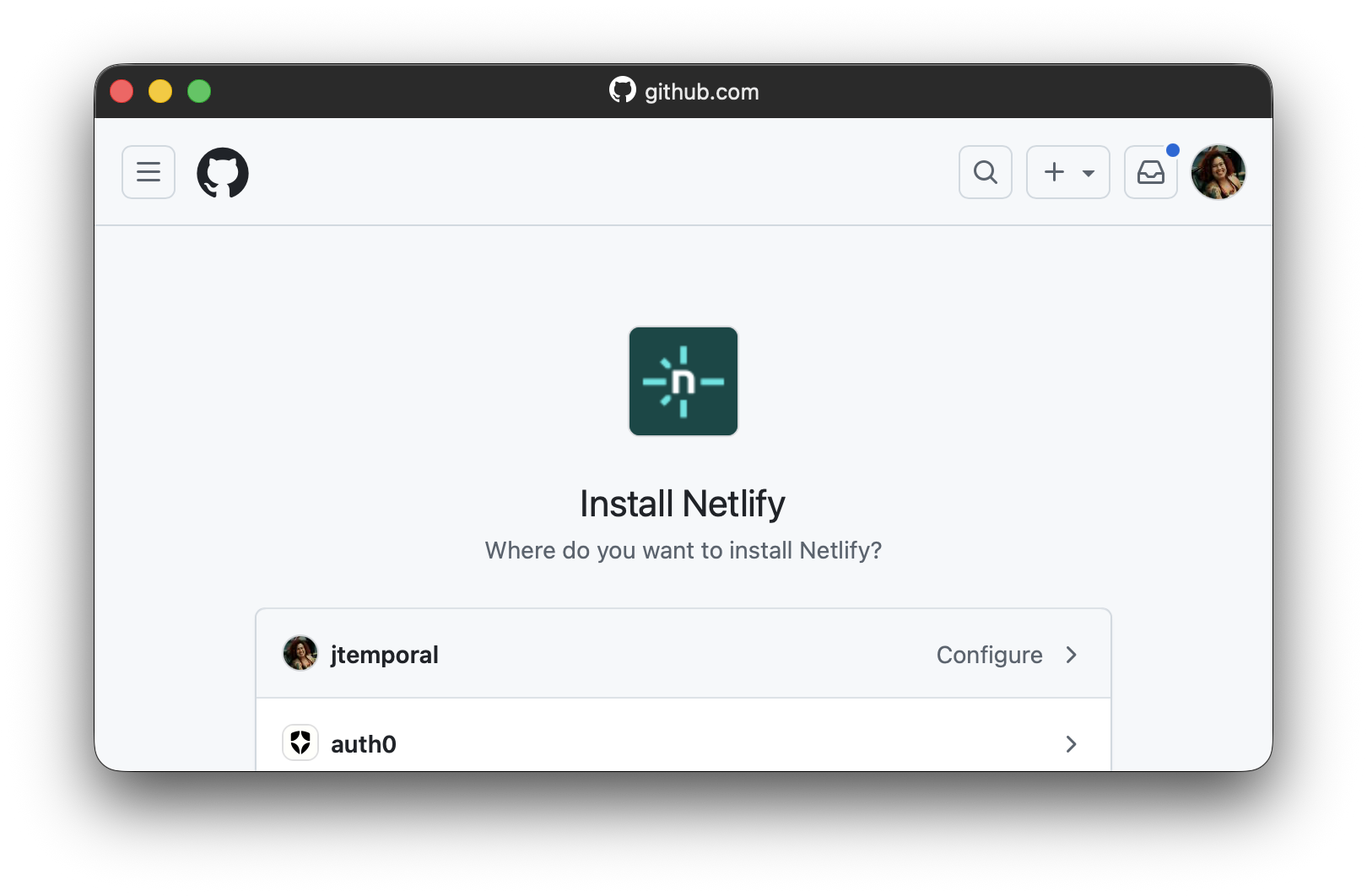
Well to get to the app you already have: Open your GitHub settings, then go to Applications under Integrations in the left sidebar. And you should see Netlify listed there:
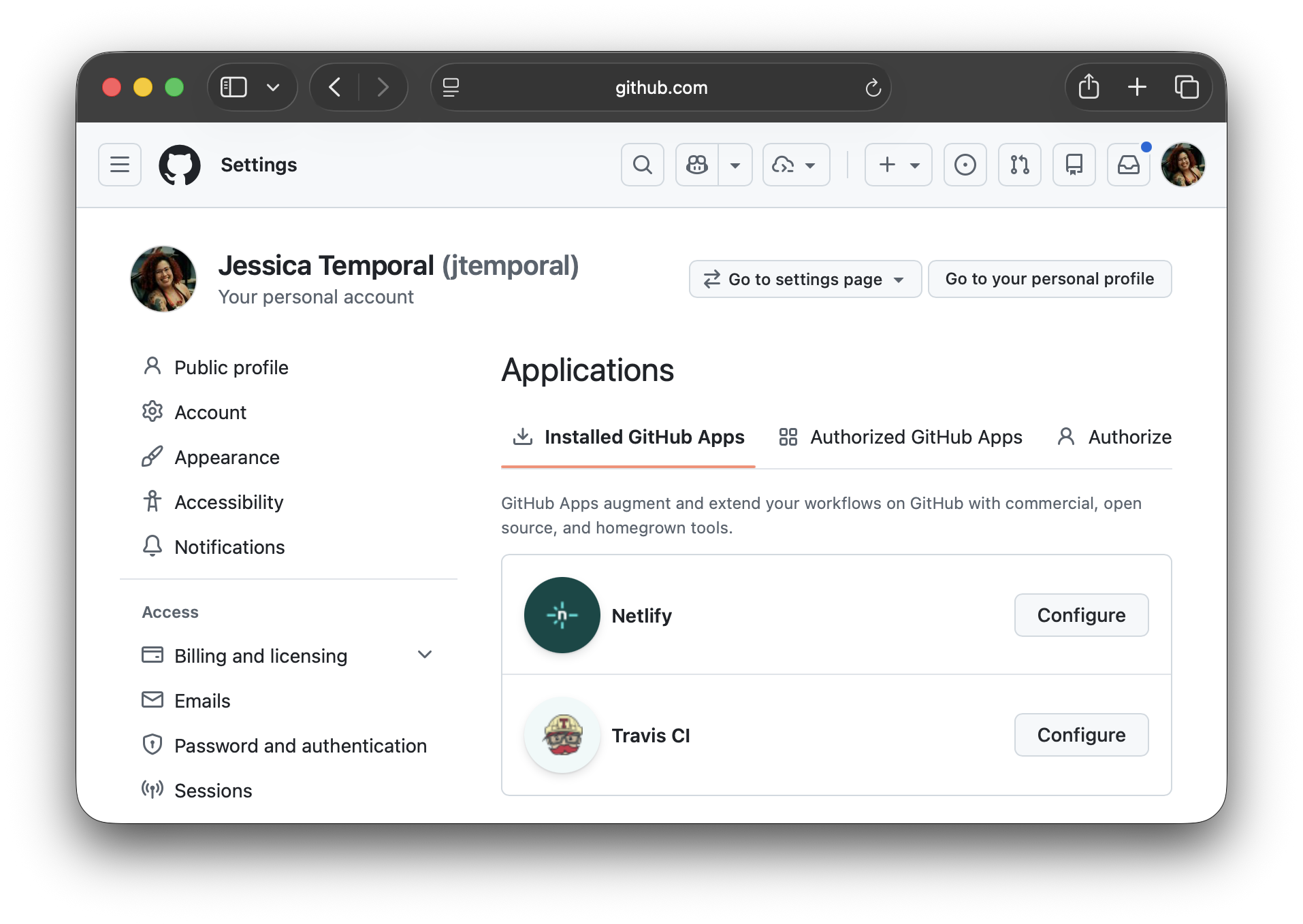
Hit the Configure button and scroll down to the Repository access section:
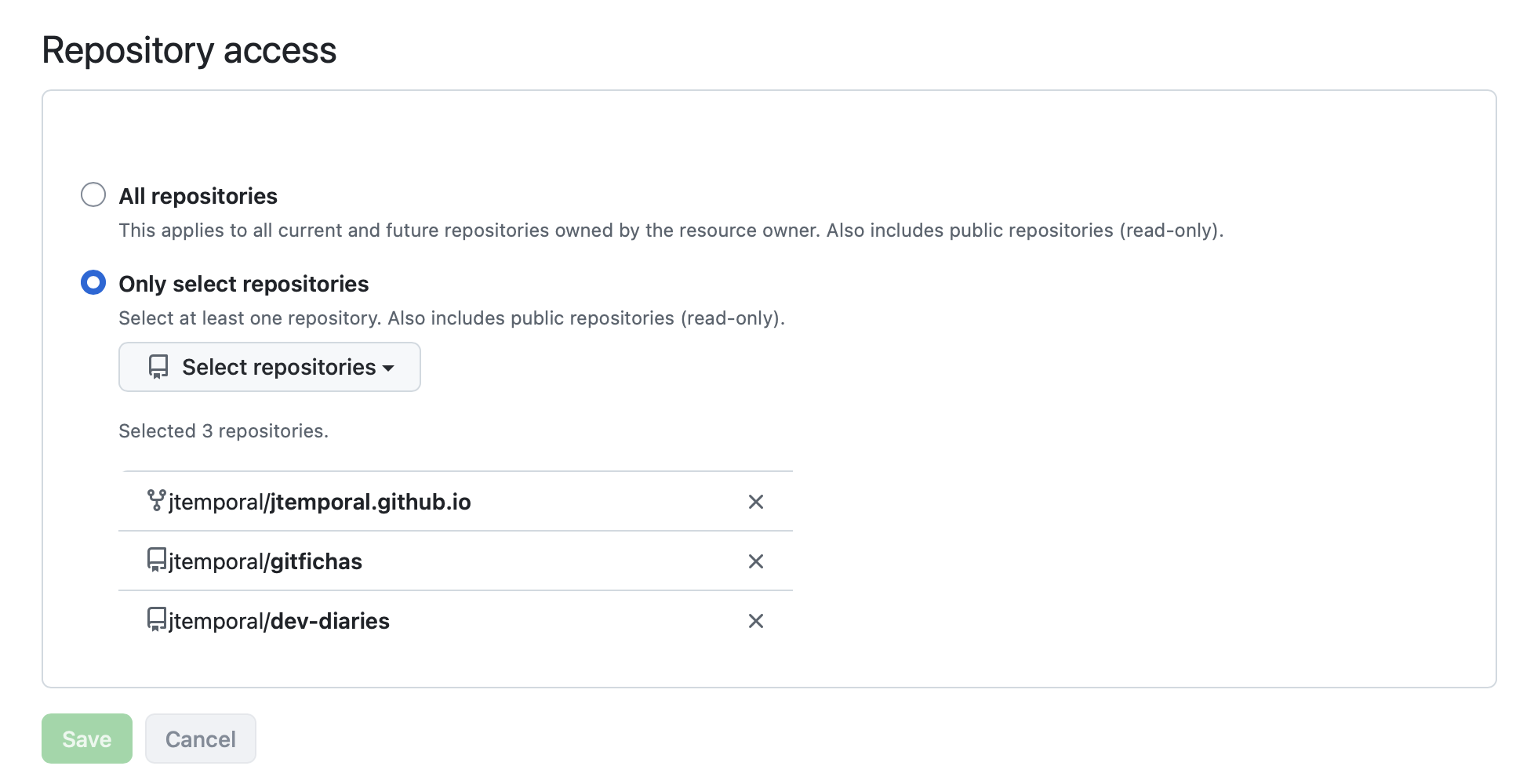
Now you can find the repo you need. Make sure to hit Save once you add it.
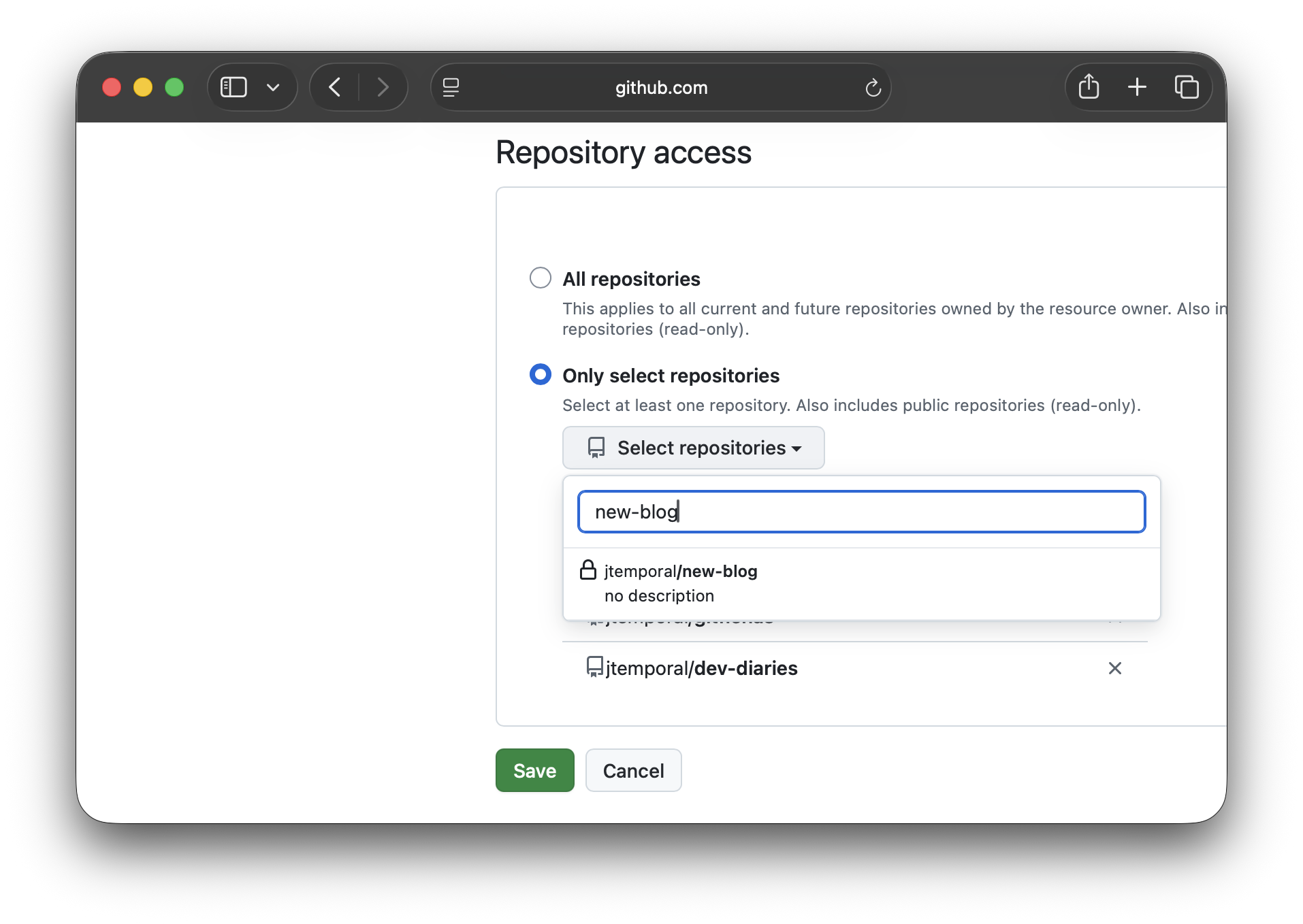
GitHub will send you right back to the Netlify dashboard so you can continue your work.
Recap
If a repo isn’t showing up when you try to connect it to Netlify, the fix probably isn’t in Netlify, it’s in GitHub. Netlify only sees the repos you allowed when you first connected the app. To update that list:
- Open your GitHub settings.
- Go to Applications under Integrations.
- Find the Netlify app and click Configure.
- Scroll to Repository access.
- Add the repo you need and save.
That’s it, back to shipping 🚀