You may already know how to use git revert to reverse a single commit, but you can also revert a range of commits with a single command. In this pro tip, you’ll learn how.
Prefer watching? Here’s a walkthrough of the same topic:
Reverting one commit
You can reverse the changes in a given commit by creating a new commit with git revert, passing the commit hash:
|
The command is straightforward. It works by:
- Creating the changes that reverse what that commit introduced
- Opening your editor with a pre-populated commit message, which you can edit and save
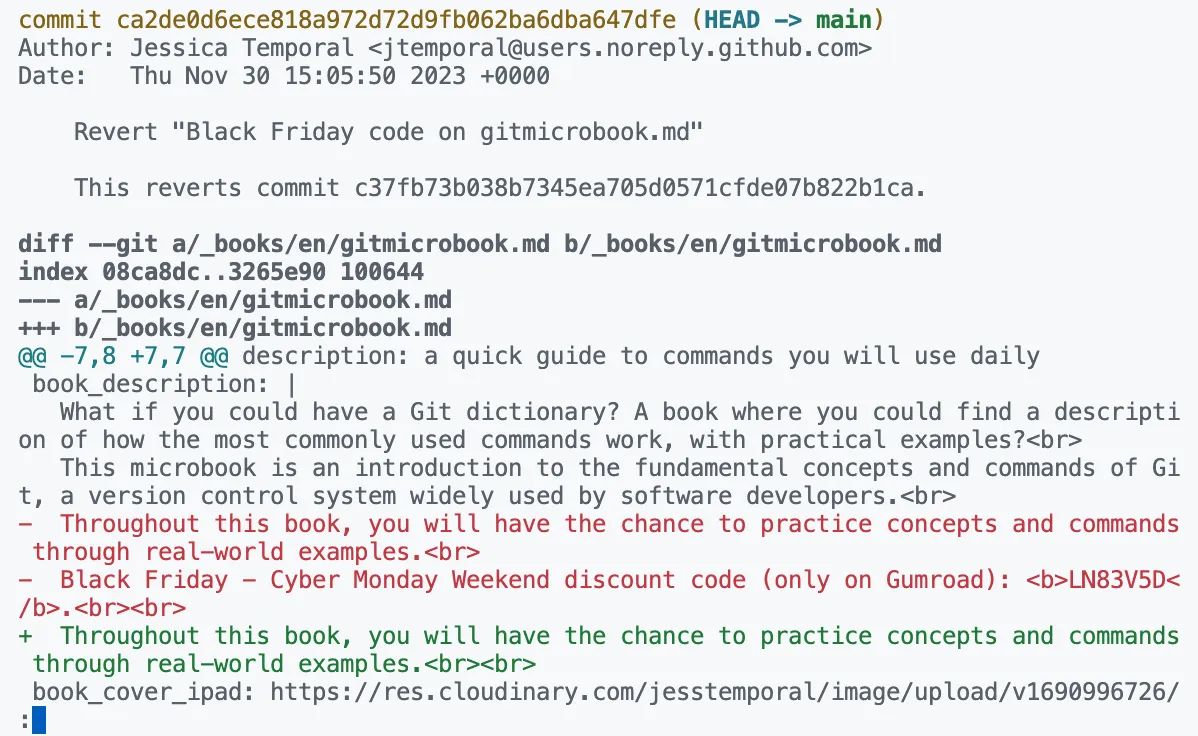
After finalizing the commit message you will see a new commit with the new changes like in the image below:
You can also undo the latest commit by using the git reset command which I wrote about in this other post.
Using revert with a range of commits
Listing out each single commit and running the revert multiple times can be a little tedious as well as prone to errors. So you can use a range of commits and run the command only once.
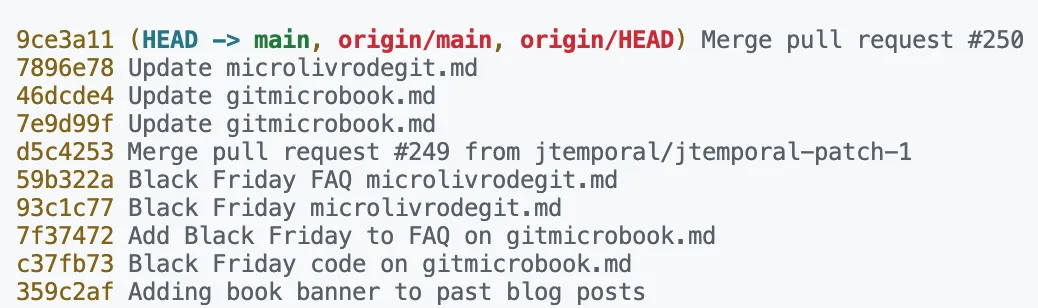
Let’s say by looking at the history in the image above that you want to revert the commits from the commit c37fb73 to the commit 59b322a. You can pass that range of commits to the revert command using the notation .. that signifies “to” like this:
|
Or if you want to preview the changes before applying the revert you can also use the -n flag like this:
|
The -n flag stands for “no commit” (same as --no-commit). Git will apply each revert to your working tree, but it won’t create the revert commits yet. That’s helpful when you also need to resolve conflicts before creating that single revert commit at the end.
Understanding the A..B notation in git revert
The A..B syntax is easy to get slightly wrong. In Git terms, A..B means “commits reachable from B but not from A.” That means the commit A itself is not included.
If you want to include the oldest commit too, use A^..B (the caret means “the parent of A”):
|
This is where ranges shine: I can target a specific section of history without rewriting anything.
And since these commits aren’t the most recent ones (I have other commits after those), I can’t simply undo “the last 4 commits” with git reset either.
Recap
When you need to undo a set of commits on a shared branch, git revert keeps your history intact, which is why it’s usually a safer choice than git reset.
Here’s a practical “recipe” for reverting a set of commits from the middle of history:
- Find the commit range you want to revert: Use
git log --onelineto identify the oldest and newest commits in the set. - Start the revert using a range and without committing:
-
Include the oldest commit too:
git revert -n <oldest>^..<newest> -
Or exclude it (if that’s what you want):
git revert -n <oldest>..<newest>
-
-
If you get conflicts, resolve them, then stage the files:
git add . -
Create a single commit with all the reverted changes:
git commit -m "Revert changes from <oldest> to <newest>" -
Push as usual:
git push