There is a particular kind of panic that hits when a commit looks like it just vanished. Maybe you ran a hard reset, or a rebase went sideways, and the work you had a minute ago is nowhere in your history. Before you assume it is gone for good, there is one command that may be able to bring it back: git reflog.
What is the reflog?
Git keeps a private log of everywhere HEAD has been. Everything you do in Git that moves the HEAD pointer is recorded, whether you made a commit, did a checkout, ran a reset, or a rebase or merge moved it around.
The log of that movement lives in the reference log (reflog for short), and it is local to your machine. So even when a commit no longer shows up when you do git log, the reference to it usually still lives in the reflog.
Finding the commit you lost
To see the reference log you can run the command below:
|
You get a list of recent moves, with the most recent entry at the top, like shown in the following image.
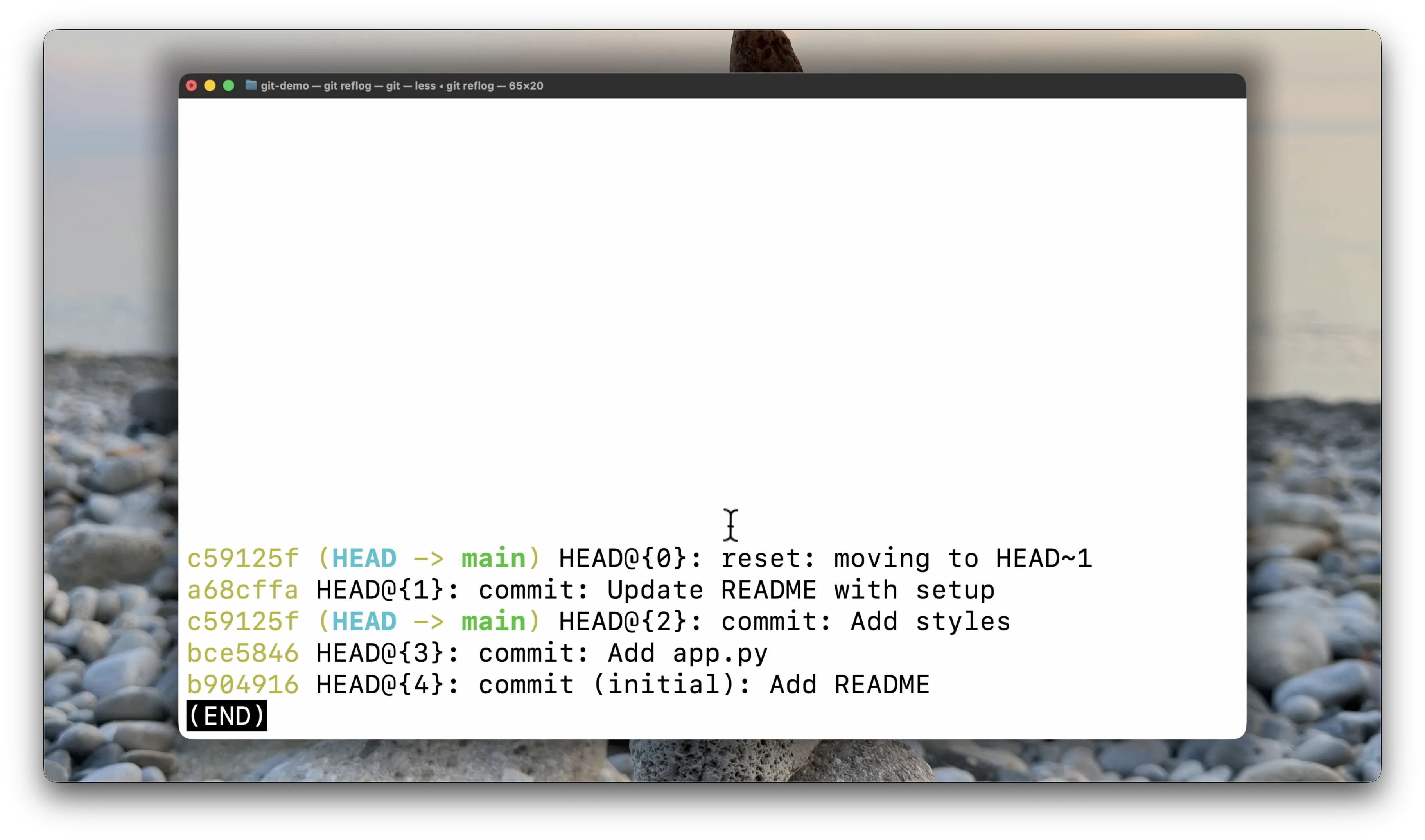
Each line has a short hash, a reference like HEAD@{2}, and a description of what happened, things like “commit”, “reset: moving to”, or “checkout”.
Even though it may be hard to get used to reading this new format of log, the description and order usually make it clear where you were and can be the indication you need to know where you want to go.
Getting back to it
Once you have spotted the right entry, copy its hash. Then move your branch back to that point:
|
Replace <hash> with the hash you found in the reflog.
For example, thinking of the image above, if you want to go to the state before the reset you’d need to run the following:
|
And after that, your working state matches the moment before the mistake, like it never happened.
A quick note of caution: git reset --hard discards your current uncommitted changes, so make sure you actually want to land on that older state before you run it. If you are not sure, you can use git switch to the hash first to look around without moving your branch.
Recap
Most people learn about the reflog the hard way after losing the work to a reset or a rebase, so knowing it exists can be extremely helpful in a pinch.
Here’s a recap of the steps to restore a previous lost state with reflog:
- Find the state you want to go back to, and copy its hash.
- Check if that’s the actual state you want to restore with
git switch <hash>. If it’s not, repeat steps 1 and 2 until you find the correct state. - Run
git reset --hard <hash>to get back to it.
The reflog pairs well with the other commands that move HEAD around: undoing the last commit and reusing the message, updating a branch with git rebase, and using git stash. If any of those ever lose you some work, the reflog is your safety net.